
Journal, Tasks, Reminders & Admin
Four quick tools in the desktop side rail, one click away on every screen. A daily journal, a task list with routines, reminders that notify you, and a tracker for renewals.
asambl keeps four quick tools in a slim rail down the right edge of the desktop app. They sit one click, or one shortcut, away from wherever you are, so you can jot a thought, add a task, set a reminder, or log a renewal without leaving what you were doing.
The rail shows on wider windows and tucks away on a narrow one. On the go, the Companion on your iPhone gives you the same kind of quick capture.
Open any tool from the rail, or with the keyboard shortcut shown in its tooltip.
They share a first-letter family: Cmd/Ctrl + Shift + J for Journal,
+ T for Tasks, + R for Reminders, and + A for Admin.
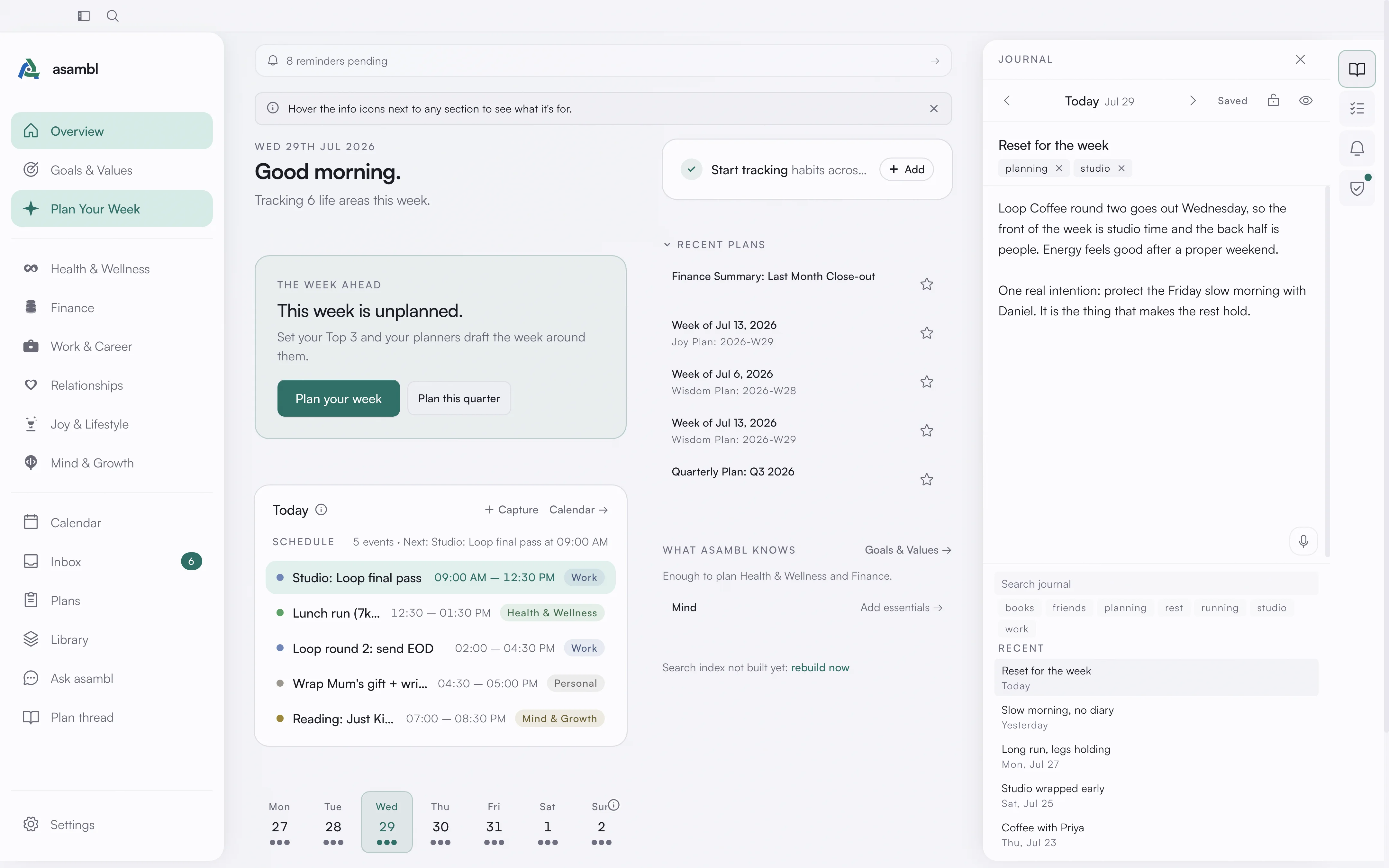
Journal
A daily journal. Each day is its own entry, saved as a plain Markdown file, one file per date. Give an entry a title, add tags, and write. It saves as you go, and you can move between days or search every entry you have written.
Two things are worth knowing:
- The privacy lock. Every entry has a lock. A locked entry is private: it is left out of search, kept away from AI agents, and gets no inline AI edits. Use it for anything you want to keep entirely to yourself.
- Inline AI. On an unlocked entry, you can select a passage and ask asambl to rework it in place. Only the text of that request goes to the managed AI endpoint, and only when AI is on. A locked entry never does.
Mood tracking is available too. Turn it on in Settings, under Journal, then tag each entry with how the day felt.
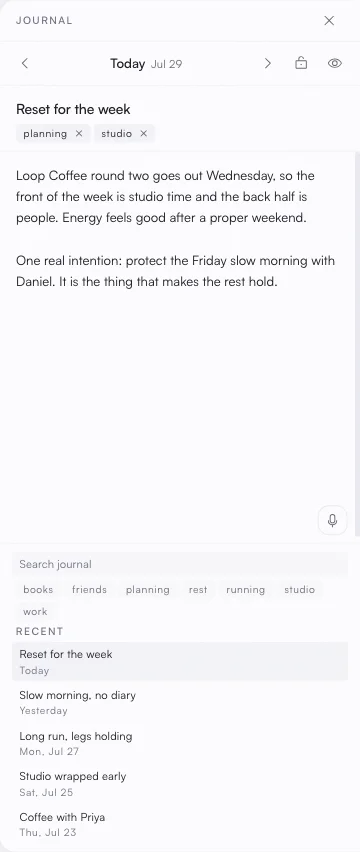
Tasks
A quick to-do list, grouped by life area. Type a task in plain language, including when it is due, like "call mum tomorrow", and asambl reads the date for you. Tag a task with a life area to keep it grouped, check it off when it is done, or delete it.
Tasks here are authored directly in the panel and kept in a single Markdown file. A to-do you capture instead, with the todo tag or sent from your phone, lands in your Inbox to triage rather than in this panel. The two are separate on purpose: the Inbox is for sorting what you caught on the fly, and the Tasks panel is the standing list you keep.
When a task with a life area is ready to become real work, promote it. That opens Ask asambl with the task handed to the planner for that area, ready to fold into your weekly ritual and land on the calendar as a scheduled block.
Routines
Some things always go together. Packing supplements, changing the towels, meal prep: individually trivial, collectively a Sunday afternoon.
A routine groups those steps into one ordered sequence that recurs. Give each step a duration, set how often the routine repeats, and tag it with a life area. It lands on your calendar as a single recurring block rather than a scatter of small ones.
Click the block and you get a checklist for that occurrence. Steps tick off independently, and when all of them are done the block is marked complete. Each occurrence tracks its own progress, so last week's half-finished routine does not follow you into this one.
Routines are managed from the Routines section of the Tasks panel.
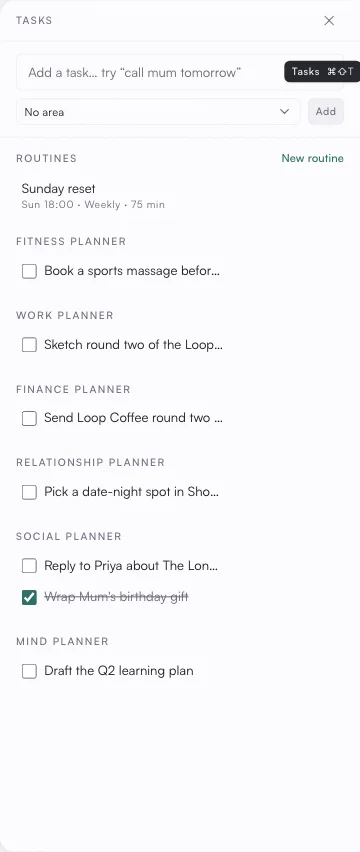
Reminders
Reminders nudge you at the right moment. When one fires, asambl shows a system notification, and reminders with a set time also appear on your calendar as chips you can act on without leaving the grid.
There are four ways to trigger one:
- At a time. A specific date and time.
- When I open a page. The next time you open a chosen page: Dashboard, Calendar, Inbox, Plans, Library, or Ask.
- Before an event. A lead time before a calendar event: 5 minutes, 15 minutes, 30 minutes, an hour, or a day ahead.
- On a missed week. If a week goes by without your planning ritual, asambl reminds you to run it.
A fired reminder can be marked done, snoozed to a new time, or skipped. Skipping a recurring reminder keeps its cadence rather than cancelling it.
Reminders can repeat daily, weekly, or monthly, with an interval and an optional end date or number of occurrences. Pending recurring reminders are listed in Settings, under Reminders.
Reminders you set on the desktop are managed here. A reminder you capture from your phone behaves like any other capture: it goes to your Inbox rather than scheduling itself.
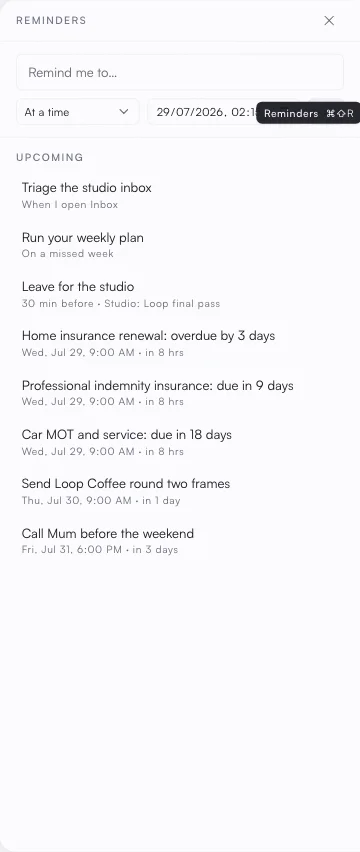
Admin
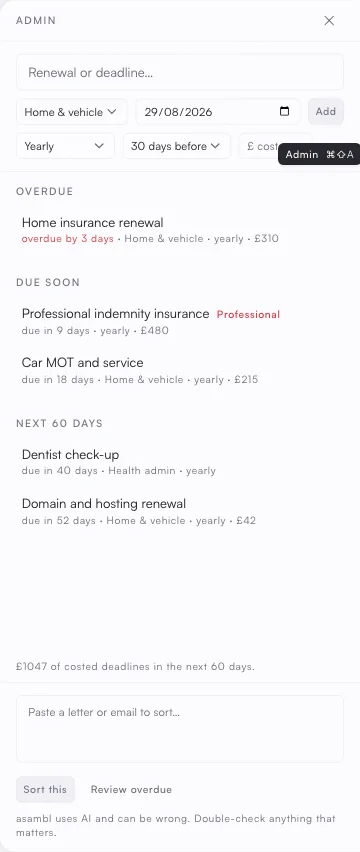
The fourth tool tracks the obligations that arrive on their own schedule and cost you when they are missed: renewals, registrations, deadlines, and the paperwork nobody schedules.
Each item carries a category, a due date, and how much notice you want:
- Professional, the registrations and revalidations your work depends on.
- Financial, tax deadlines, policy renewals, and anything with a penalty attached.
- Home & vehicle, insurance, MOT, tenancy, and the rest of it.
- Health admin, appointments, prescriptions, and screenings.
Set how often each one recurs, from a one-off through monthly, yearly, or every two, three, or five years. The longer cadences are the point: a five-yearly renewal is exactly the kind of thing you will not remember unaided.
Choose your notice separately, from a week up to 90 days ahead. Categories carry sensible defaults, since a professional registration needs longer warning than a prescription.
The panel shows what is coming in the next 60 days, grouped into overdue, due soon, and the rest, with a total of what it will cost you, so a heavy month is visible before it arrives rather than during it.
Where this data lives
Everything in these four tools stays on your machine as plain Markdown, so you can read or back it up in any editor. When AI is on, only the prompt for a given request, such as an inline journal edit, goes to asambl's managed AI endpoint. You can switch AI off entirely, and all four tools keep working without it. See Settings for the full picture.