
Settings
Every section of Settings, the screens that ship hidden, the keyboard shortcuts, and how asambl handles your data.
Settings holds thirteen sections. The rail lists twelve of them as one group, with your installed life areas as a second group below, each one listed individually so you can jump straight to the area you want.
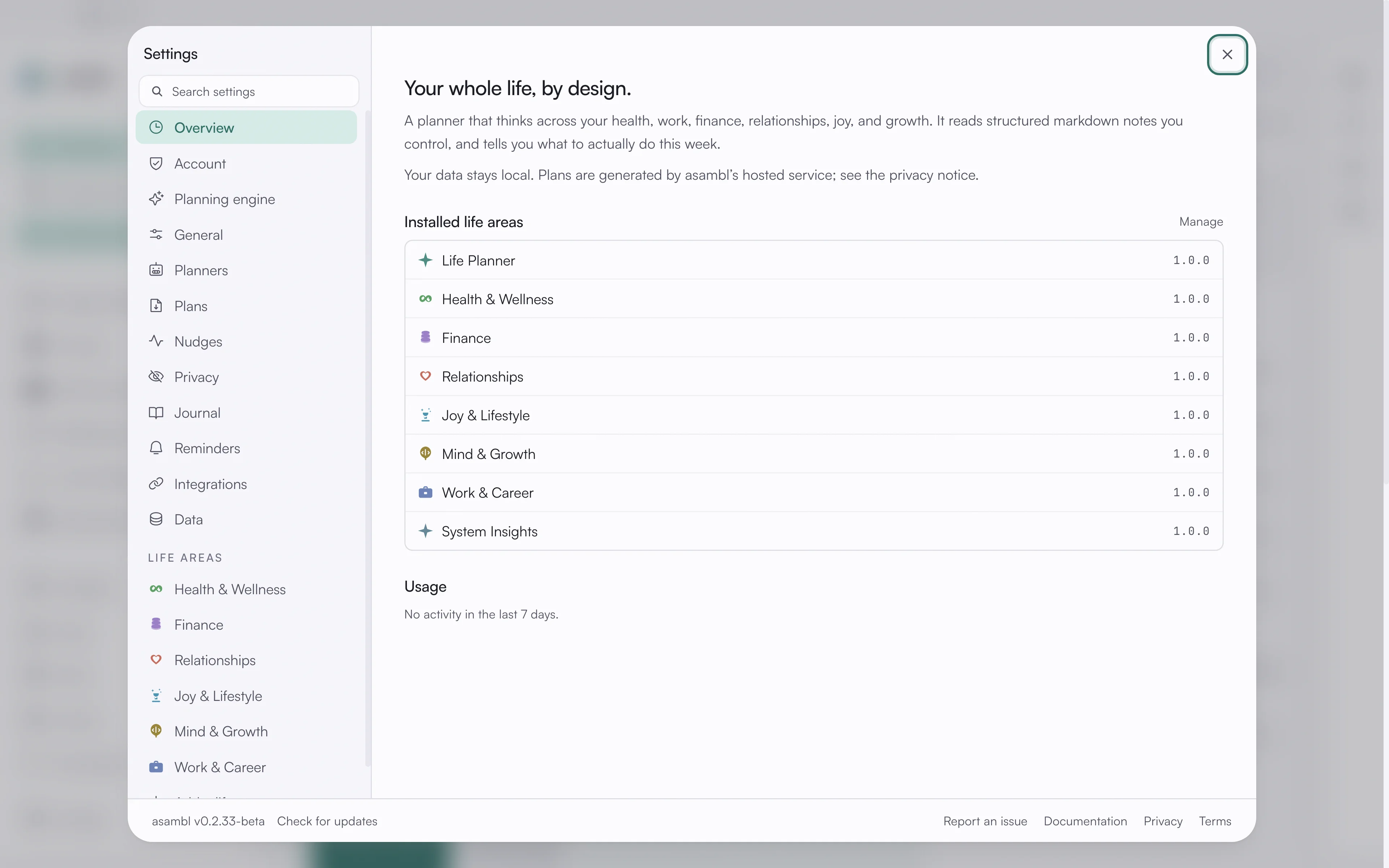
Overview
What asambl is, and the life areas you have installed, with their versions.
Account
Your name, location, and beta access. Your beta key carries across updates, so this is mostly somewhere to check rather than change.
Planning engine
How asambl drafts and routes your plans.
Managed AI is included, so there is no API key to set up. You can turn AI off entirely. With AI off asambl will not draft your week; you get a blank weekly template to fill in by hand, and everything else keeps working.
When you work best. This subsection shapes where focused blocks land during planning:
- Work hours. Which days you work and between what times. Defaults to Monday to Friday, 09:00 to 17:30.
- Energy peak. Morning, afternoon, evening, or flexible.
- Focus time. When you would rather deep work landed.
- Protect the lunch hour. Off by default.
These are preferences, not rules. The planner treats them as strong signals and still works around what is actually on your calendar.
General
Theme, accent, sidebar, and how the app behaves.
The theme picker is here: ten looks, from the quiet Light default to full skins with their own typeface. See Themes.
Screens that ship hidden. Five routes are off by default and switched on individually from the sidebar controls in this section:
- System, health metrics for the app itself.
- Media Library, your books, films, music, and podcasts.
- Travel, upcoming trips and itineraries.
- Joy Profile, the activities you reliably enjoy and your weekly targets.
- Plan thread, every turn asambl logged for the current planning week, in order.
Media Library, Travel, and Joy Profile belong to Joy & Lifestyle and feed your plan whether or not their screen is visible. The toggle only controls whether each gets its own place in the sidebar.
Life Areas
Add or remove a life area. Turning one off leaves its files alone; the context stays on your computer and comes back if you turn the area on again. See Life areas.
Planners
When asambl runs, and which planners are on.
Plans
What happens to a plan once it is generated: whether it opens automatically, whether plans carry structured metadata, and how much planning detail is shown. See Plans.
Nudges
When asambl catches a lapse, and how it reviews your plans. This is where you control the observation asambl makes when you commit a week, and what happens when a week goes by without one.
Privacy
What stays private, and what is shared. Covered in full at the bottom of this page.
Journal
Mood tracking, and what your entries feed. Turn mood tracking on here to tag each entry with how the day felt. See Journal, Tasks & Reminders.
Reminders
Nudges for planning and follow-through.
Integrations
Connect your calendar and other services. During the beta, Google Calendar connects only for accounts on the beta allow list; request access from this section if it does not connect first time. See Calendar.
Data
Where your files live, plus backup and restore. Export your data, back up your files, and run maintenance on the index and embeddings.
Your files are plain Markdown in a folder you control, so you can copy that folder anywhere without exporting anything.
Keyboard shortcuts
| Shortcut | Does |
|---|---|
Cmd/Ctrl + K | Command palette: jump to a page, run a command, search your files |
Cmd/Ctrl + N | Start the weekly planning ritual |
Cmd/Ctrl + Shift + C | Quick capture |
Cmd/Ctrl + Shift + J | Journal panel |
Cmd/Ctrl + Shift + T | Tasks panel |
Cmd/Ctrl + Shift + R | Reminders panel |
Cmd/Ctrl + Shift + A | Admin panel |
Cmd/Ctrl + Shift + N | Start a new conversation, while you are in Ask asambl |
The four rail panels share a first-letter family: Journal, Tasks, Reminders, Admin.
Your data and privacy
Your files stay on your machine. When AI is on, only the prompt for that specific request goes to asambl's managed AI endpoint, hosted on Azure OpenAI, and it is not stored long-term. Full-text search, semantic search, and embeddings all run locally on your device.
You can switch AI off entirely. With AI off the planner stops drafting and hands you a blank template to fill in by hand; the rest of asambl keeps working, without contacting the managed endpoint.
Your files are plain Markdown in a folder you control, so you can back them up, version them, or open them in any editor. Nothing about the format locks you in.
For the full details, including data handling, retention, and your rights, read the complete privacy policy.